UEM Connections & Fleet Coverage
Behavry could always tell you "41 Wardens installed". It could not tell you out of how many, because only your unified endpoint management system knows the size of your fleet.
Connecting a UEM supplies that denominator, and then lets you act on what it reveals.
Where to find it
| Surface | Path |
|---|---|
| Connections | Administration → Integrations → Device Management |
| Fleet Coverage | Operations → Enforcement Surfaces |
With no connection configured, the Device Management panel reads "No connection yet" and Fleet Coverage reads unavailable rather than showing a percentage.
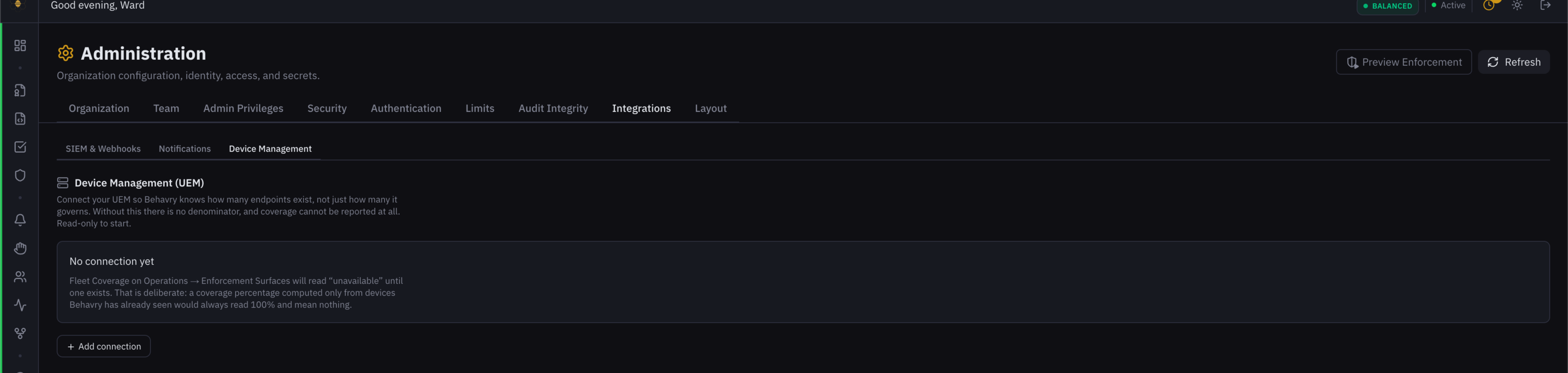 Device Management with no connection — the panel states plainly why coverage cannot be reported rather than showing a fabricated number.
UEM is never an enforcement path for anything time-sensitive. Intune's default device check-in is around eight hours; Behavry's own Warden policy channel is seconds.
Anything urgent travels on the Warden channel. The UEM carries durable state your helpdesk already understands.
Supported providers
| Provider | Inventory | Posture publish | Notes |
|---|---|---|---|
| Microsoft Intune | Yes | Yes — Entra security groups | Microsoft Graph, app-only client credentials |
| Omnissa Workspace ONE | Yes | Yes — Workspace ONE tags | OAuth client credentials, not the legacy aw-tenant-code key |
| Google (Chrome Browser Cloud Management + ChromeOS) | Yes | No | Inventory only, by design |
Chrome Enterprise has no bucket a policy engine reads back, so posture would have to mean an OU move — a far larger blast radius than joining a group, for devices that are mostly already governed inline by the browser extension. The Google connector declares no posture support and does not define the write methods at all.
What it does close is the Google blind spot: config push through chrome.storage.managed never read the estate back, so nobody could say how many managed browsers exist or which installs are stale.
The Intune connector is exercised against live tenants. The Workspace ONE and Google connectors have not been exercised against a live tenant — tag search and create are marked unverified in the code, and Google's chromebrowsers path is a beta API. Treat first deployments on those two as pilots.
Permissions Behavry requests
For Intune:
| Permission | Why | Needed for |
|---|---|---|
DeviceManagementManagedDevices.Read.All | Read the device inventory that gives coverage a denominator | Inventory |
GroupMember.ReadWrite.All | Move devices in and out of the two Behavry-owned groups | Posture |
Not requested, at any tier: any managedDevice write scope. No wipe, no retire, no remote lock, no passcode reset. The consent screen you see should be defensible line by line, and the strongest guarantee is code that cannot perform the writes we say we do not do.
GroupMember.ReadWrite.All is broad because Entra offers nothing narrower — there is no per-group write scope. The narrowing lives in Behavry's code instead: every write asserts the group id against the ids recorded on the connection when the groups were created, so a group you created is never touched even if it shares the naming prefix.
How inventory syncs
The sync worker runs on the data plane. It wakes every 15 minutes and syncs each connection at most every 6 hours, oldest-first with nulls first so a backlog drains fairly instead of starving the same tail.
The slow cadence is deliberate: polling faster re-reads the same rows and burns Graph quota shared with your other integrations.
Connections auto-disable after 10 consecutive failures, matching how SIEM connectors already behave — one operational shape to learn, not two.
Coverage, and its denominator
GET /api/v1/uem/coverage returns denominator_available: false and no percentage for a tenant with no connection. The Fleet Coverage panel renders that as unavailable rather than inventing a number.
And means nothing. That is why the unavailable state exists rather than a default.
Coverage separates two states that are commonly conflated:
- Uncovered — a machine that never had a Warden
- Installed but quiet — a Warden that has stopped reporting
A stale Warden is a different problem from a machine that was never enrolled, and treating them as one number is the exact ambiguity that stalls a liveness investigation.
Coverage is a floor until your fleet upgrades
Accurate matching depends on Warden reporting hardware identifiers, which arrives in v0.6.0. Until a fleet upgrades, the coverage figure under-claims rather than over-claims, and should be presented that way. See hardware identifiers.
How a device is matched
The reconciliation ladder tries six rungs, strongest first, and records which rung matched so a bad match can be explained afterwards:
| Rung | Key | Confidence |
|---|---|---|
| 1 | uem_device_id (supplied through managed config) | High |
| 2 | entra_device_id | High |
| 3 | serial_number | High |
| 4 | hardware_uuid | High |
| 5 | hostname + user_identifier | Medium |
| 6 | hostname alone | Low |
Two rules make the ladder safe:
Ambiguity is not a match. If a key matches more than one device, that rung yields nothing and the ladder continues. Two laptops named MacBook-Pro must not resolve to whichever row came back first.
Junk identifiers are rejected on both sides. OEMs and hypervisors ship placeholder serials — To Be Filled By O.E.M., VM template serials, all-zero UUIDs — that are structurally valid and identical across thousands of machines. The Warden client omits them, but that only protects Behavry's side of the join: your UEM inventory holds the same junk, read from the same BIOS, and no client change can filter it. Unfiltered, every machine shipped with that placeholder collapses into one device and the coverage number quietly becomes fiction.
Wire up uem_device_id. Intune and Workspace ONE can both substitute a device's own ID into a managed-config value per device at deploy time, which makes the match exact rather than inferred. See managed config.
Device posture
Behavry does not block access. It records a posture on a device and moves that device into a security group it created and owns. Your Conditional Access policy decides what membership means.
That separation is the entire point. A wrong posture cannot produce an unappealable denial from a system your people have never heard of — only a denial from your own access policy, through the sign-in experience they already know, appealable through the helpdesk process they already use.
| Group | Meaning |
|---|---|
Behavry-Posture-Restricted | Behavry has flagged this device. You decide the consequence. |
Behavry-Posture-Monitored | Elevated concern, short of restriction. |
A device with no Behavry concern is in neither group.
Removal from everything makes a reset verifiable by absence, and it stops an admin wiring a policy to a "cleared" group and inverting its meaning.
Posture publishing is off by default
It is a per-tenant switch on the connection, and there is a server-side kill switch as well. Nothing publishes until you enable it.
curl -X PATCH https://<your-behavry>/api/v1/uem/connections/<id> \
  -H "Authorization: Bearer $TOKEN" \
  -H 'Content-Type: application/json' \
  -d '{"tier": "posture", "posture_publish_enabled": true}'
The groups are created lazily on the first posture change, not at this step.
Wiring Conditional Access
In Entra admin center → Protection → Conditional Access → New policy:
- Assignments → Devices → Include → Filter for devices: filter on membership of
Behavry-Posture-Restricted - Grant: choose the consequence
Report-only shows exactly which sign-ins the policy would have affected without affecting anyone. Require MFA is a real consequence a person can resolve themselves at 2am without filing a ticket.
Then exclude your break-glass accounts. A device-targeted policy is less likely to lock out an administrator than a user-targeted one, but "less likely" is not a lockout plan.
What Behavry refuses to do
Three refusals, each protecting a different person. All return HTTP 409 with a reason, never a silent no-op — a caller that asked for a restriction and got a 200 with nothing applied would reasonably believe the device was restricted.
| Refusal | Why |
|---|---|
| Device not matched | There is nothing to have an opinion about. |
| Low-confidence match (hostname alone) | Restricting the wrong one takes someone's access away over a coincidence. |
| Personally-owned device | Restricting an employee's own phone is a materially different act from restricting a corporate laptop, and should never happen as a side effect of a fleet rule. |
Ordering and state
Removals happen before additions. A crash midway leaves a device in no group, failing toward less restriction. The reverse could leave it in two contradictory groups, and a policy reading both would apply the stricter one to someone who was just cleared.
Applied state and published state are separate columns. Setting a posture is a local write that always succeeds; landing it in your directory is a network call that can fail. Collapsing them would let the interface claim an enforcement that has not happened.
posture_published_atIf it is null, group membership has not changed and Conditional Access will not see it — regardless of what the posture field says.
Expiry
allowexpires in 24 hours by default. An exception that outlives its reason is indistinguishable from a policy gap, and the one you granted for an afternoon is the one nobody remembers. Passexpires_atto choose a different deadline; you cannot pass "never".- Restrictions never auto-expire. A restriction lapsing on a timer would silently restore access on a schedule.
Verbs
With reset defined as "clear the Behavry posture flag", block / allow / reset collapse into one primitive plus an expiry.
Only notify is a real device command, and its default transport is Behavry's own Warden channel (seconds). The UEM path is the fallback for devices with no Behavry client, because Intune's Company Portal notification is beta-only and lands at the next check-in.
Turning it off
Three levers, fastest first:
- Disable the Conditional Access policy. Access returns to normal immediately; Behavry keeps recording posture. This is the right lever in an incident, because it is yours and it is instant — nothing in Behavry has to respond, or even be reachable, for it to work.
posture_publish_enabled: falseon the connection. Behavry stops writing to your directory; existing memberships stay until reset.- Reset the devices —
POST /api/v1/uem/devices/{id}/posturewith{"posture": null}— to empty the groups.
Every posture change is traced
A Decision Trace records the operator identity, the previous and new posture, the match confidence behind it, and whether the change actually reached the directory. See Decision Traces.
API
| Endpoint | Purpose |
|---|---|
GET /api/v1/uem/providers | Available connector types |
GET / POST /api/v1/uem/connections | List and create connections |
GET / PATCH / DELETE /api/v1/uem/connections/{id} | Manage a connection |
POST /api/v1/uem/connections/{id}/test | Validate credentials |
POST /api/v1/uem/connections/{id}/sync | Force a sync |
GET /api/v1/uem/devices | Reconciled device inventory |
POST /api/v1/uem/devices/{id}/posture | Set or clear posture |
POST /api/v1/uem/devices/{id}/notify | Send a device notification |
GET /api/v1/uem/coverage | Coverage, with denominator availability |
Not built, deliberately: the Intune MTD connector
Every third-party Mobile Threat Defense partner is Android and iOS only — of 17 published vendors, Windows appears twice and both are Microsoft's own, and macOS not at all.
Behavry's primary surface is the desktop Warden plus the browser extension, which MTD does not reach. Partner status would light up the thinnest surface and do nothing for the main one. The shadow-group approach used here works in any tenant on day one and covers all four platforms.
Related
- Warden desktop agent — the agent whose coverage this measures
- Browser extension deployment — the other enforcement surface
- Connectors — SIEM and other integrations