Decision Traces
A Decision Trace™ is the flight-recorder record of a governed episode: what an agent tried to do, which policy fired, what the outcome was, and the tamper-evident evidence to prove it. Reading a trace is the core operational skill — it's where an investigation starts when something looks wrong.
Open Decision Traces in the sidebar (Governance group).
The list
The list is your triage surface. Four counters summarize the window — Total, Critical, Elevated, and Chain Breaks — and each row is one trace.
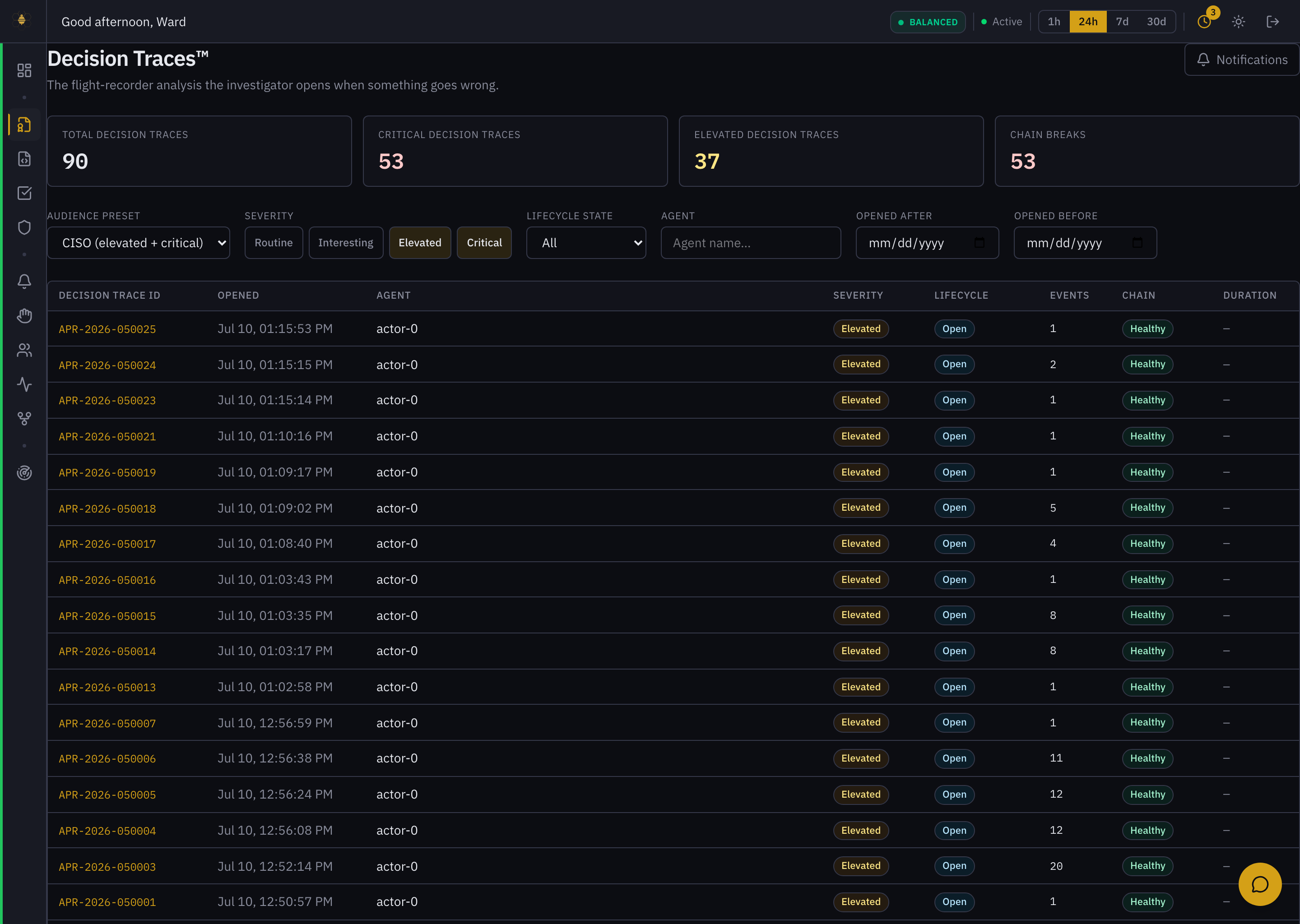 Decision Traces — the triage list, filtered here to the CISO preset (elevated + critical).
Filter down to what matters:
- Audience preset — a one-click lens. CISO shows elevated + critical only; other presets widen or narrow the noise floor.
- Severity — Routine · Interesting · Elevated · Critical.
- Lifecycle state — Open, Under Review, and so on.
- Agent and date range — scope to one actor or one window.
Each row shows the Decision Trace ID (e.g. APR-2026-050027), when it opened, the agent, severity, lifecycle, the number of events in the episode, the chain status (Healthy / Broken), and duration.
Chain: Broken means the tamper-evident hash chain for that trace failed verification — the evidence for that episode can't be trusted end to end. Treat broken chains as their own class of incident, separate from what the agent did.
Anatomy of a single trace
Click a trace ID to open it. Everything you need to reconstruct and defend the decision is on one page.
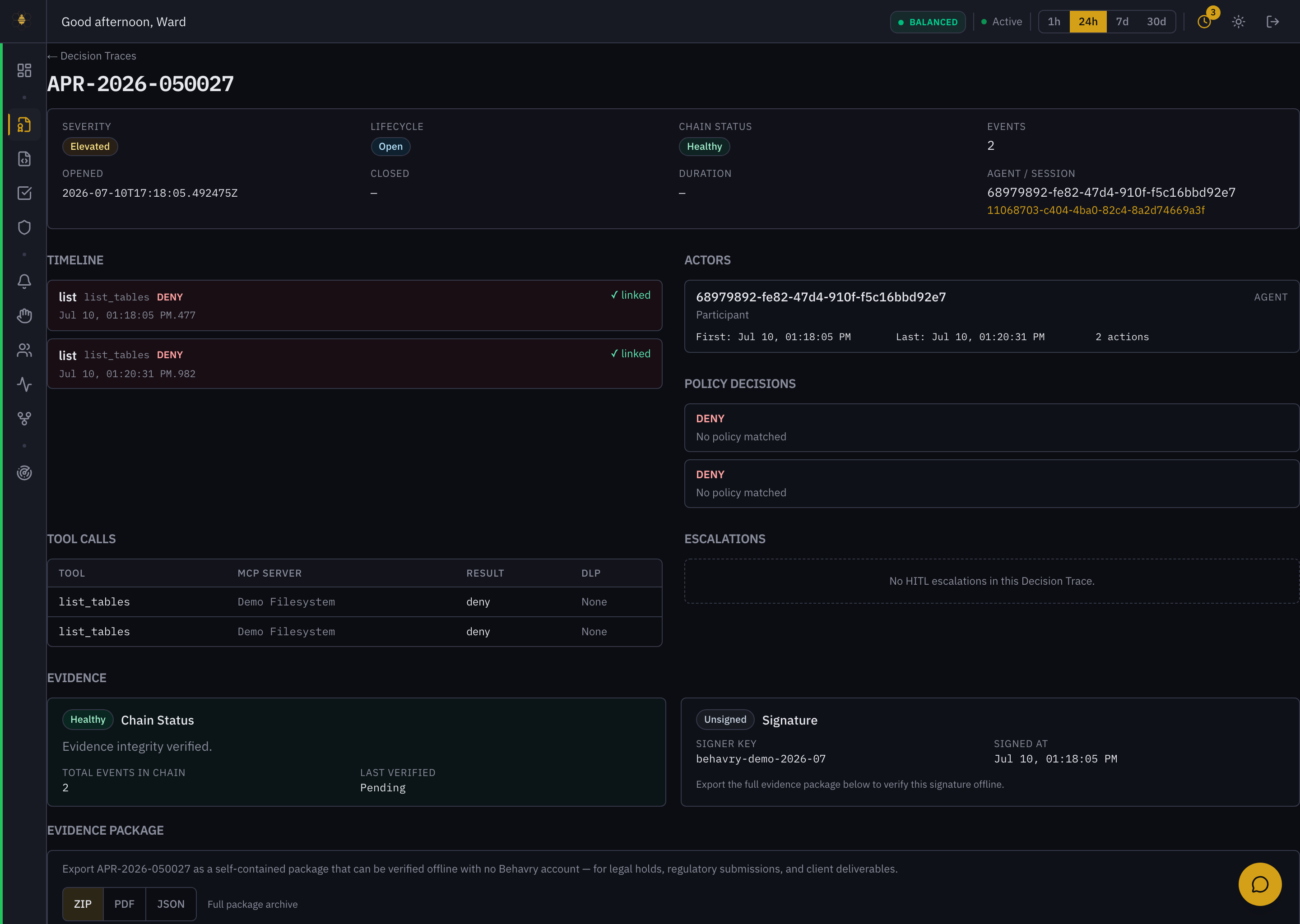 A Decision Trace opened — timeline, actors, policy decision, tool calls, evidence, and the offline verification command.
Reading top to bottom:
- Header — severity, lifecycle, chain status, event count; opened / closed / duration; and the agent / session the episode belongs to.
- Timeline — the ordered events in the episode (for example,
list→list_tables→ DENY). This is the "what happened, in order." - Actors — who participated, when they were first and last seen, and how many actions each took. For multi-agent episodes, this is where delegation shows up.
- Policy decisions — the outcome (ALLOW / MODIFY / DENY / ESCALATE) and which rule produced it.
No policy matchedunder a DENY means the default-deny floor caught it — nothing explicitly allowed it. - Tool calls — each tool invoked, the MCP server it targeted, the result, and whether DLP redacted anything.
- Escalations — any human-in-the-loop review this episode triggered.
Evidence — why this is defensible
The lower half of the trace is what makes it hold up to an auditor.
- Evidence — chain status ("integrity verified"), total events in the chain, and the cryptographic signature (signer key, signed-at).
- Evidence package — export the whole trace as a self-contained ZIP, PDF, or JSON that anyone can verify offline, with no Behavry account. This is what you hand to legal holds, regulators, or a customer.
- Verification — a trace can be verified independently:
python verify_event.py --package apr-APR-2026-050027.zip --trust-anchor anchor.json
- Narrative — generate a plain-language summary of the episode for a report.
See Decision Trace and Audit Integrity for how the hash chain and signatures work.
A worked investigation
A typical "why was this blocked?" investigation:
- Start in the list. Set the audience preset to CISO (or filter Severity → Critical) and find the trace by agent or time.
- Open it and read the Policy decisions block. It names the rule and the outcome — that's your why in one line.
- Cross-check the Timeline and Tool calls. Confirm what the agent actually attempted and against which MCP server.
- Check the Chain. Healthy means the evidence is intact; Broken is its own incident.
- Act. If the block was correct, you're done. If it was a false positive, jump to the named policy to adjust it (see Policies); if the action should have been held for a person, route it through Escalations.
- Preserve it if needed. For anything that may be disputed or audited, export the evidence package before you move on.
On any trace you don't understand, open Ask Behavry and ask "explain this Decision Trace" — it reads the live trace and walks you through the decision and where to act.